
Aniwatch and Anime Playback Across Phones, Computers, and TVs
Independent editorial guidance on compatibility, device settings, safety, and responsible use.
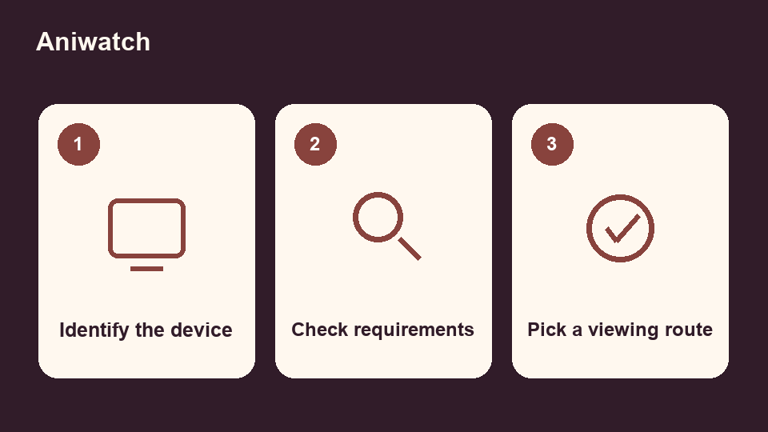
Compatibility depends on the device you want to watch on, the player the streaming service supports, and the episode available to you. If an Aniwatch search led you to an Android package, first identify whether you need a mobile app, a computer browser, or a TV app. Check the precise device model and the service’s published requirements before choosing a route, then try one episode with the settings you actually use.
Match the app or browser to the device
Write down the device model and operating system version. On a phone, you can usually find both in the settings area that describes the device. For a computer, add the browser name and version. For a television, note the model and its operating system, especially if another television in the house has the same brand. With those details, look up the service’s supported-device documentation and any listing it links to.
An Android APK is a package for Android. If you searched for Aniwatch APK for iOS, look for an iPhone or iPad listing linked from the verified publisher’s site, or check whether the service documents playback in a supported mobile browser. On Android, compare the requirements on the publisher-linked listing with your device information. On a computer, start with the service’s supported browser and verify that you can reach the player from the service’s own title page.
Check TV playback on the screen you plan to use
If you searched for Aniwatch APK for smart TV, start with the television’s own app store and the service’s compatibility documentation. A phone and a television can share an Android name while using different interfaces and app listings. In particular, test whether you can navigate to the episode and reach playback controls with the remote before relying on the TV for a full series.
For example, if your phone plays an episode but the service’s app is missing from your TV store, check whether the service documents casting for your specific receiver and mobile device. Use the official player’s casting control if the service supports that setup, and follow its network requirements. Once connected, open the language menu and try pausing or resuming from the device you expect to use. If casting is unavailable in that setup, check your television or streaming device against the service’s list again before changing any settings.
Verify publisher identity and title rights
Follow the app link from the service’s verified website and compare the developer name and support details with its documentation. If a listing found through a store search has a similar icon but identifies a different developer, use the publisher’s own listing to resolve the discrepancy. For browser viewing, enter through the service’s verified site so you can identify whose player you are using.
Next, look up the anime through its rights holder, distributor, or authorized regional licensee. A watch announcement or a distributor’s title page can identify the service and territory. Confirm the season and episode on the service’s regional catalog as well. If the distributor announcement names a country but you live elsewhere, look for your own territory or ask the distributor before making plans around the show.
Test the full viewing setup before settling on it
Play a representative episode for several minutes on the intended device and network. Turn on your preferred subtitles or select your preferred audio if those choices are listed. Try seeking ahead, pausing, and starting again. On a TV, read a few subtitle lines from your normal seat and check that the controls are practical with the remote. This test tells you more about everyday viewing than a successful app launch.
If the episode plays on your phone and stalls on the TV, test both on the same network with the same episode. Note any error and which device shows it. Consult the verified service’s guidance with the television model, app version if shown, and the time the problem occurred. Those details help support distinguish a device-specific issue from a problem with that episode.
Next step