
Aniwatch Search Troubleshooting for Buffering and Playback Errors
Independent editorial guidance on compatibility, device settings, safety, and responsible use.
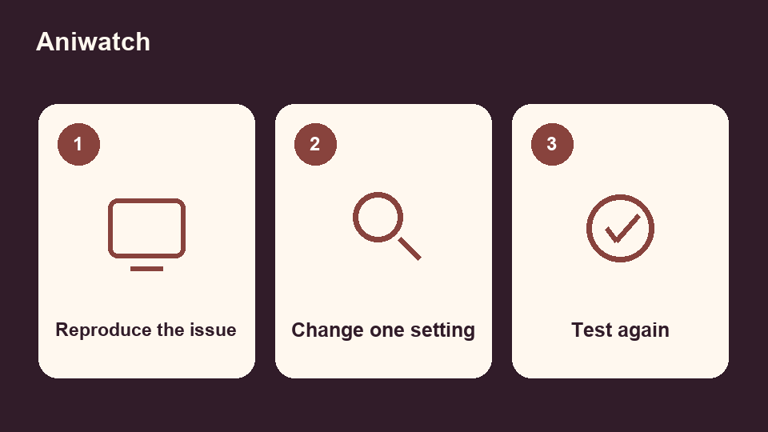
A frozen frame, endless spinner, or player error tells you where to start looking. If you reached a streaming service through an Aniwatch search, verify the service and its supported viewing route before attempting repairs. Then reproduce the problem with the same anime episode and change one thing at a time. A comparison across episodes, devices, or networks can narrow the issue and give the service’s support team a clear starting point.
Record the exact symptoms and check the source
Write down the series title, season, episode number, and approximate timestamp. Note whether playback fails immediately, freezes at a particular scene, or stutters throughout. Copy the exact error message if you see one. Reopen the episode through the verified service’s title page instead of relying on an old bookmark. This lets you confirm whether the episode is listed and whether other information, such as a language or device requirement, has changed.
Confirm the service’s right to carry the anime by looking up the title with the rights holder, distributor, or authorized regional licensee. Check that the watch announcement or title information covers your country and season. Match it to the service’s regional catalog. If you use an app, follow the verified publisher’s own app link and compare its developer and support details with the listing. If the title is unavailable in your region, ask the distributor about authorized availability there.
Run one comparison at a time
Try a second episode on the same device and network. If the second plays normally, return to the original and see whether it stalls at the same timestamp. If both fail, try the original episode on a second supported device connected to the same network. Keeping two parts of the setup constant makes it easier to tell which change affected playback.
For example, if an episode plays on your phone but fails on the TV while both are connected to home Wi-Fi, check the service’s TV model and software requirements. If both devices fail on Wi-Fi, test the phone on mobile data if your plan permits it and you are comfortable using it for video. Record the results. The difference can help distinguish a TV-specific issue from a problem that follows the home connection.
Choose a fix that matches the symptom
For buffering across several episodes, pause large downloads on your own network and move closer to the router if practical. If the verified player offers a quality setting, lower it for a short test and replay the same segment. For browser playback that stops before the video starts, check the service’s supported browsers, reopen the player, and try a supported browser you already use. For an app that closes unexpectedly, restart the device and check for an update through the same publisher-linked listing you used to install it.
If the picture plays but sound is missing, confirm the selected audio track, device volume, and output destination. Headphones or a TV speaker may be selected when you expect sound elsewhere. Try another track if offered and note whether the problem affects one language only. For a missing subtitle track, check the episode menu and compare it with the service’s own language information for that episode.
Give support a reproducible report
If the problem persists, use the support channel linked by the verified service. Include your country, the title and episode, the affected timestamp, the time of the test with your time zone, and your device model. Add the browser or app version if you can find it, plus the exact error and the results of the comparisons. A screenshot can help if you crop out account and payment details.
For example, report that episode six freezes at 12:40 on both the TV and phone over home Wi-Fi, but plays through that point on the phone over mobile data. If only a single dubbed track fails, include its label and identify one track that works. This level of detail lets support start with the affected conditions and gives you a precise segment to retest after a fix.
Next step